

- Recommended - Shopify variant Barcodes - see Option A below
- Alternative if unable to use barcodes - Global-e variant metafields - see Option B below, only used if Shopify barcodes are empty
Already using the metafields? You do not need to migrate to Barcodes right now. We keep reading the metafields but recommend moving to Shopify new standardised barcode fields in the future.
What you need to provide
For what each identifier is, see The three identifiers on the overview page. Data is set per variant, not per product. A barcode belongs to a specific sellable item - a size M black t-shirt has a different barcode from a size L. Use product-level fields only if the product has a single variant, or if the value is genuinely identical across every variant.Option A - Shopify Barcodes
Shopify lets you add more than one barcode per variant, each with a type. Use the bulk editor, CSV, or Admin API to perform changes on multiple products/variants. In Shopify Admin:- Open Products → choose a product → open a variant.
- In Barcodes, add an entry and choose the type:
- NS-PID → for NS-PID (manufacturer code, model number, supplier SKU, or your own style code)
- GTIN, EAN, UPC, or ISBN → for S-PID when you have a real barcode
- Save the variant.
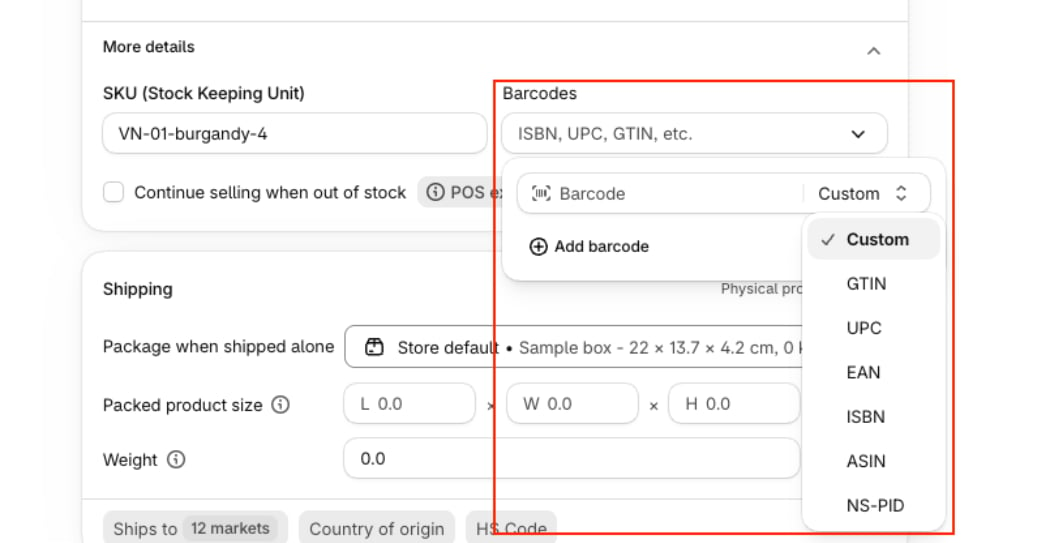
Legacy single Barcode field: Shopify is moving that value into Barcodes. We can use it where it maps to S-PID. You still need NS-PID in NS-PID.
standardcode) from that variant’s Barcodes list using the first match below.
- A Custom (or untyped) barcode that passes Shopify’s GTIN format checks
- The first barcode typed GTIN
- The first barcode typed EAN
- The first barcode typed UPC
- The first barcode typed ISBN
- A Custom (or untyped) barcode that did not pass GTIN checks at step 1
Option B - Global-e metafields
What to do - three steps
Step 1 - Create the two metafield definitions Navigate to Settings → Metafields and metaobjects → Variants → Add definition and create both of the following. After entering the metafield name, clickcustom.standardcode to change the namespace:
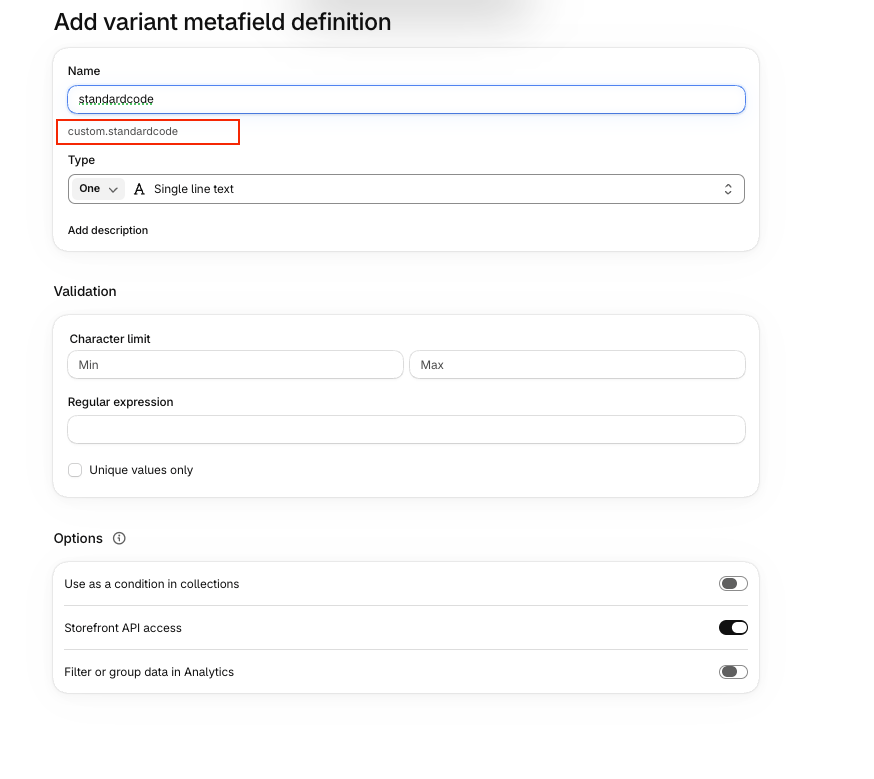
custom namespace to globale:
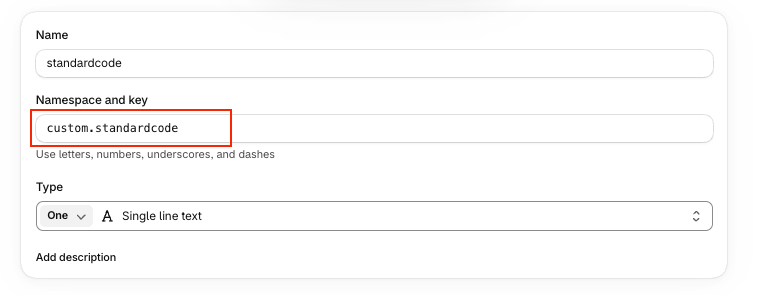
Step 2 - Populate the metafields on your variants
You can edit values individually, or in bulk using the Shopify bulk editor, a CSV import, or the Admin API.
standardcode- set per variant. It normally differs across sizes and colours.mididentifier- required on every variant. Often identical across all variants of a product, so it usually bulk-edits cleanly.