
Email Notifications

Shopify and Third-Party Email Notifications The Global‑e solution allows brands to retain control over their transactional emails by relying on Shopify’s email notifications or any third-party application used for that purpose. As part of the standard Global‑e order flow, the following Shopify email notifications are triggered by the events in Shopify:
  • Order confirmation
  • Order cancelled
  • Order refund
  • Shipping confirmation
Depending on your offering, the following notifications may also be applicable:
  • Draft order invoice
  • Gift card created
If you use a third-party app to send emails rather than using the native Shopify emails, make sure to disable the Shopify notifications (otherwise two emails will be sent for each event).If you use the notifications natively available in Shopify, make sure that this option is enabled in Shopify.For more information, see https://help.shopify.com/en/manual/orders/notifications/order-notifications?utm_campaign=Guru+Ask&utm_medium=forums&utm_source=social#disable-a-notification
Global‑e Email Notifications If you are using the Global‑e Returns portal, Global‑e sends the RMA notification email including the Returns documents directly to the customer.

Include Duties in Your Email Templates

The following templates are located under Shopify Admin > Settings > Notifications.
  • Order Confirmation
  • Order Cancellation
  • Pending Payment Success
  • Order Refund
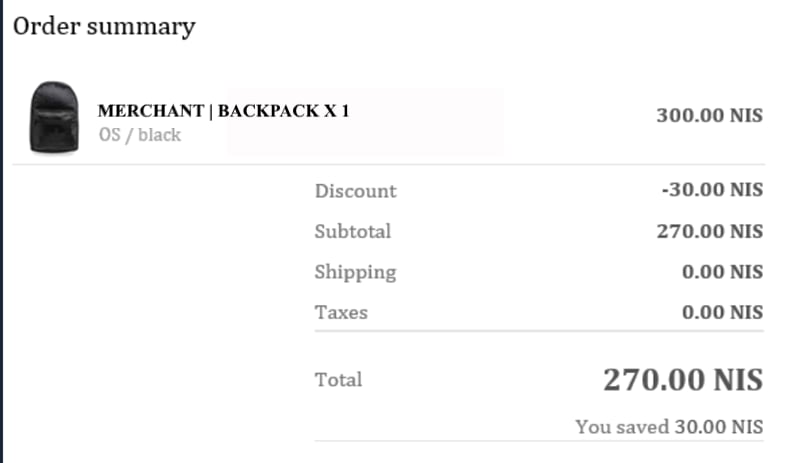
To include duties in your email templates, use the following code:
To exclude the Taxes line when the amount is 0, adjust your template as shown below:

Draft Order Invoice Notification

Adjust the Draft Order Invoice notification per Merchant to ensure that the invoice:
  • Does not display a zero value for shipping and taxes
  • Does display Calculated at checkout.
If your Draft Order Invoice notification template contains a condition for delivery_method == “pickup’, use the snippet below:
If your Draft Order Invoice notification template does not contain a condition for delivery_method, use this snippet instead, replacing your domestic country code on line 1 where indicated.

Prevent Payment on an Expired Order

To prevent a situation in which a customer receives an e-mail to resubmit payment for an expired Global-e order, you must adjust the Pending Payment error notification e-mail. The Pending Payment error email can be edited in the Shopify Admin by going to Settings > Notifications > Customer Notifications > Pending payment error > Edit code. Find:
Replace with:
Find:
Replace with:

Remove “Total paid today”

If you prefer to exclude the “Total paid today” from the order confirmation emails, you can do so by removing the below code block from the notification template. Please note that this code block will appear twice, so you will need to remove both instances.