

Integration Features
Examples
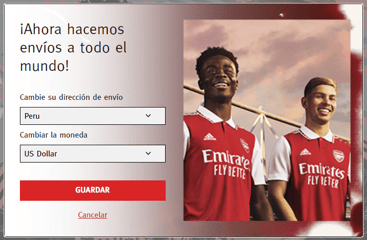
High-Level Flow

Sample Reference Architecture

Integration Overview Before Global‑e

Customer Journey (Technical)

Integration Overview with GE - Customer Browsing

Integration Overview with Global‑e - Order Creation

Client-side Includes

BigCommerce Order List
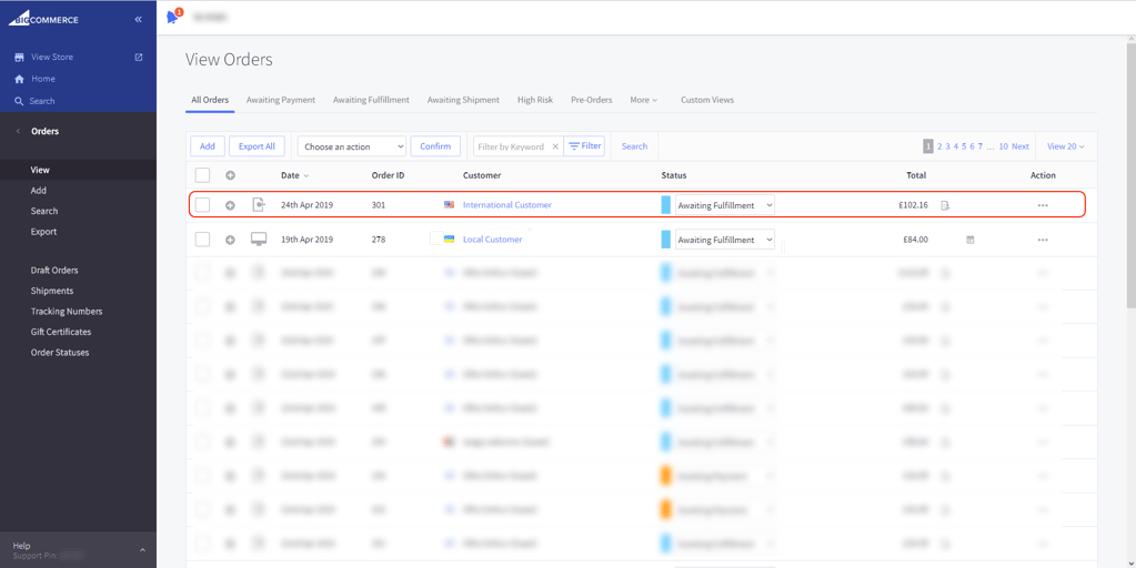
BigCommerce Order Details
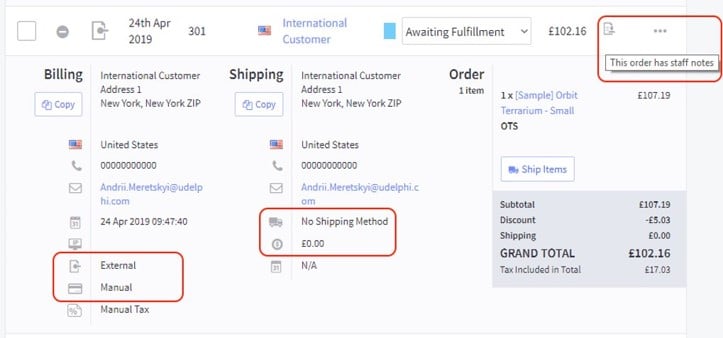
- The order is created as domestic
- The international details are stored in staff notes
Integration Overview with Global‑e
Order Dispatch

Marketing, Analytics, and Communication
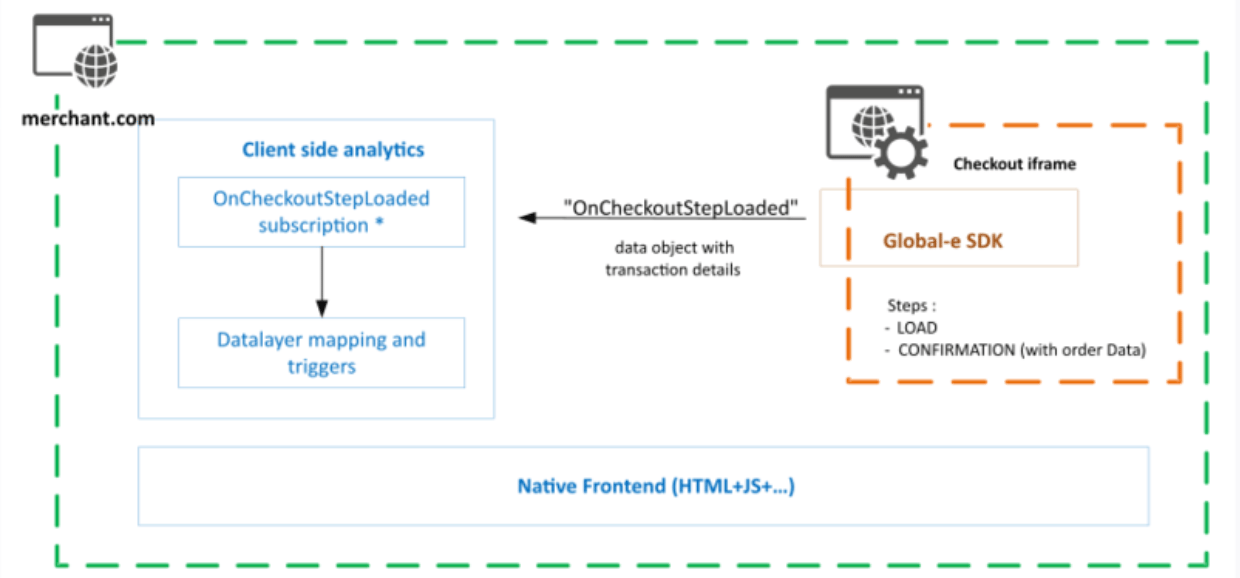
Analytics and Tracking Pixels - Client SDK
Marketing Feeds
Adjust existing Google feed and new feed for Global‑e markets.Order Processing
Global‑e-operated orders are created in the e-commerce platform as domestic orders (base currency) with:- End Customer transaction currency data
- End Customer shipping and billing address
- “Global-e” shipping service(s) – for warehouse dispatch routing – to be mapped in ERP
- “Global-e” payment provider – for financial/accountancy handling – to be mapped in ERP
- Both Global‑e and brand platform order numbers referenced on both sides
Order Downstream Flow and Dispatch

Returns and Refund Management
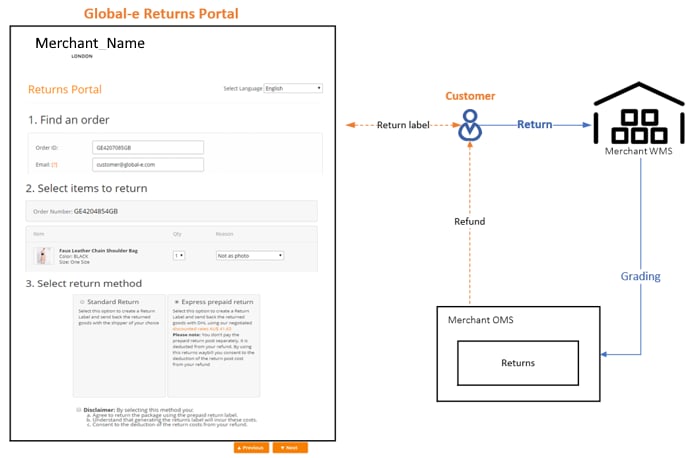
The customer submits returns requests directly through the Global-e Returns Portal (Global-e Customer Service Portal).
The Admin can perform returns via the Global-e Merchant Portal Returns screen.
Refunds are executed either via:
→ The Global-e Customer Service Portal
→ Direct API integration with Global-e
The Admin can perform returns via the Global-e Merchant Portal Returns screen.
Refunds are executed either via:
→ The Global-e Customer Service Portal
→ Direct API integration with Global-e
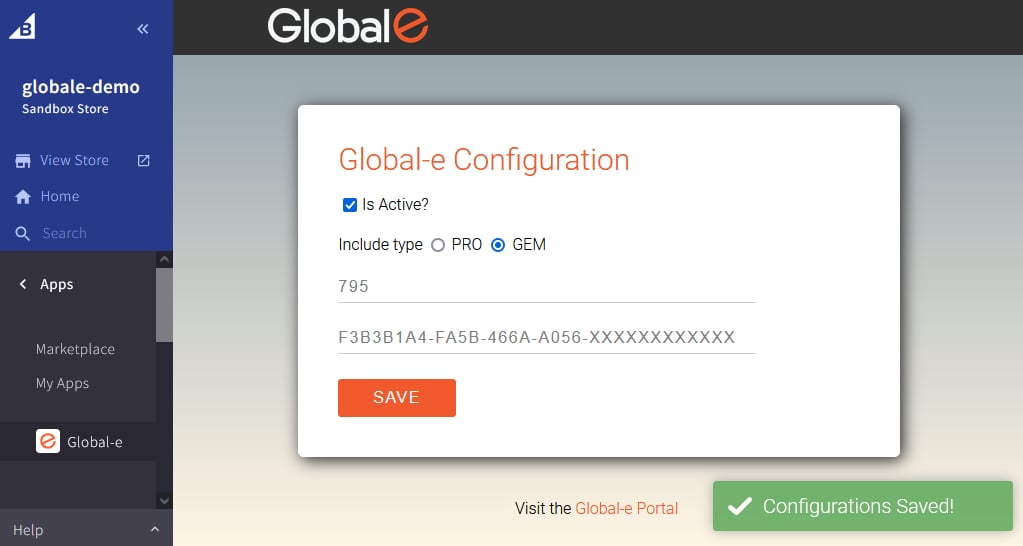
To configure the Global-e Application
-
From the BigCommerce left menu, select Apps > Global-e.
The Global-e Configuration screen opens.
-
Configure the following parameters, as required:
- Click SAVE. The Global-e scripts for BigCommerce are added to your Merchant site.