

Base Global‑e Script
You can host the SDKJavaScript file locally or be served from the Global-e servers. If you would like to host the file on your servers, you can download the script from the following location by replacing the appropriate parameters:
This script loads the Global-e client script asynchronously.
The Global‑e client script uses an asynchronous approach so that you can start calling actions immediately; these actions are executed once the script is fully loaded.
This list is subject to modifications and limitations that may affect the availability of payment methods on the checkout page.
Order Transaction Analytics
The Global‑e Checkout Analytics feature enables the Merchant to obtain and track customer activity and use this information for analytics. This feature is part of the Global‑e Client SDK. This document focuses on the implementation of the Global-e Client SDK Order Transaction Analytics event; it targets teams in charge of implementing analytics, trackers, and other front-end implementations related to checkout events. The Global‑e Client JavaScript SDK implements the front-end UX features, (for example, Country and Currency switching) and integration (analytics) features on your website. Merchants can use the Client SDK to gather data and integrate the checkout information with any analytics framework, such as Google Analytics, or with any pixel type or tracker solution. The following figure provides an overview of the Global‑e Client SDK subscription flow. The following figure provides an overview of the Global‑e Client SDK subscription flow.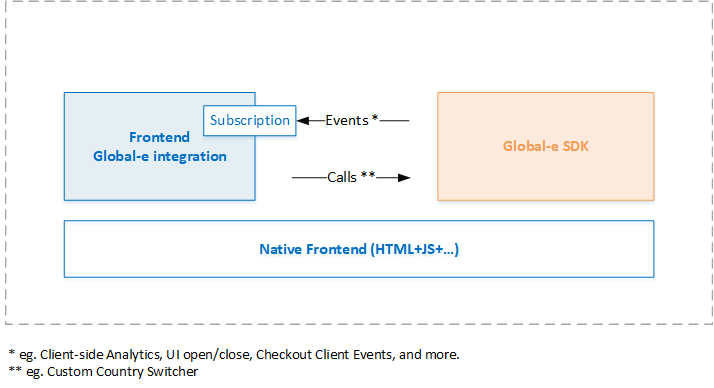
- The Merchant subscribes to the Global-e SDK Events (callback).
- When specific actions are performed by the customer on the Merchant’s website, the Global-e Client SDK sends a trigger, and the event returns the relevant information in JSON format.
OnCheckoutStepLoaded event functionality, as detailed in this document.
The following figure provides an overview of the Global‑e Checkout analytics flow.
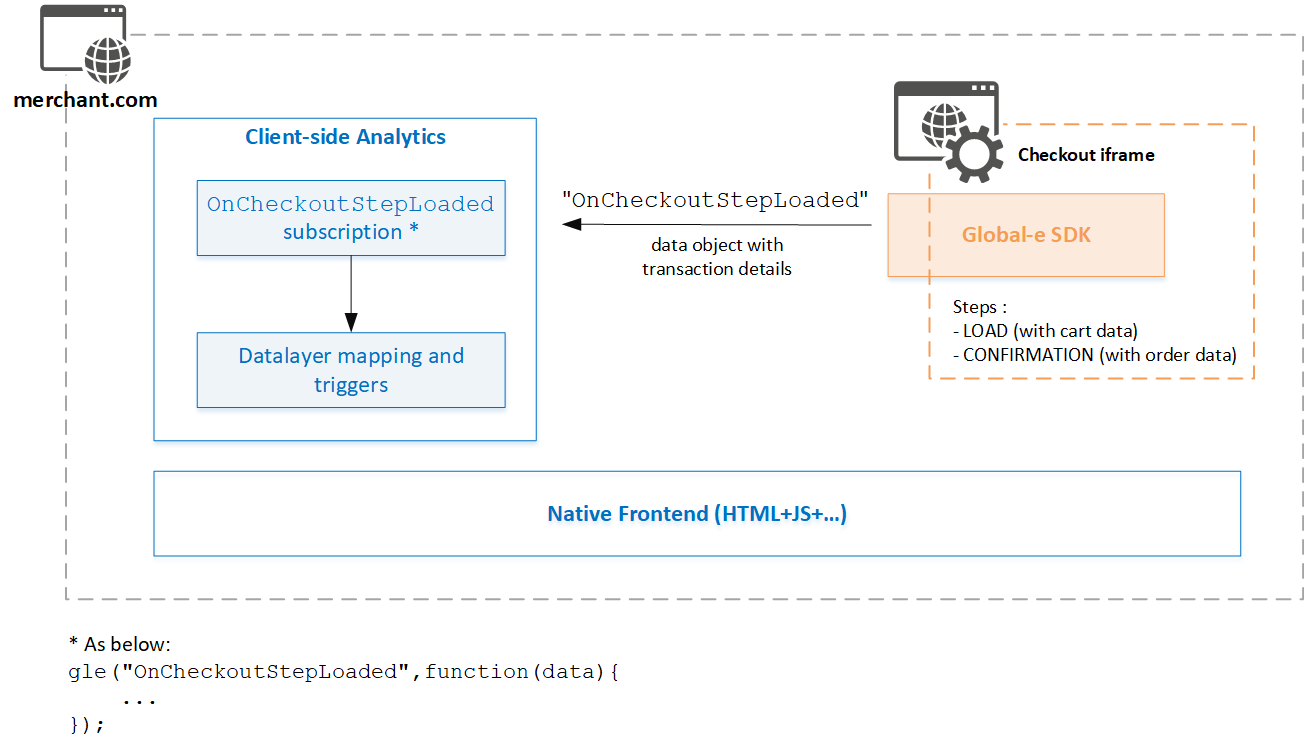
-
Subscribe to the Global‑e
OnCheckoutStepLoadedcallback, as described in Subscribing to OnCheckoutStepLoaded. -
After subscription, when the Global‑e
OnCheckoutStepLoadedis triggered based on checkout activities (LOADorCONFIRMATION), the Global‑e Checkout iFrame sends you back checkout and order information in JSON format. -
Map the checkout data returned by the
OnCheckoutStepLoadedto your existing analytics implementation so that you can create conversion reports in your analytics dashboard.Ad-blockers and payment redirects can affect analytics reporting.
- Global‑e shall provide and maintain the Global‑e Order Transaction object, as specified by Global‑e. In addition, Global‑e shall provide the support required to assist the Merchant with their implementation efforts.
- The Merchant shall implement the subscription, data layer mapping, and Quality Assurance testing.
OnCheckoutStepLoaded
This section describes how to subscribe to theOnCheckoutStepLoaded callback, the functionality of the callback and the Transaction Analytics object, and how to implement this feature for analytics.
OnCheckoutStepLoaded is triggered twice:
-
Checkout Page**
LOADstep**: The LOADED step is called when the customer visits the checkout page or changes the destination country. Upon trigger, the Global‑e Client sends the OnCheckoutStepLoaded event together with a subset of the Order Transaction Analytics data, enabling the merchant to get product and cart information. -
**Checkout
CONFIRMATION**step: When the checkout completes (Checkout Confirmation), the Global-e Client sends the OnCheckoutStepLoaded event again, together with the Order Transaction Analytics data. The Order Transaction Analytics contains product, and payment information, as well as transaction information between the customer and Global-e and reconciliation transaction information between Global-e and the merchant.
-
You can use one of the following subscription options:
- If not already included, incorporate the
OnCheckoutStepLoadedsubscription snippet directly into your Checkout page (only). - Load the subscription from an external resource via tag manager (for example, Google Tag Manager).
- If not already included, incorporate the
- Implement your required triggers and data layer around the checkout process.
OnCheckoutStepLoaded callback is illustrated in the following snippet.
OnCheckoutStepLoaded Callback
This section describes theOnCheckoutStepLoaded callback, the data, and how the data is passed.
The OnCheckoutStepLoaded is called twice, once for the initial checkout page load and the second time for the checkout confirmation page.
OnCheckoutStepLoaded callback properties.
data
LOADED Step (StepId: 0)
When theLOADED step is triggered, the data property includes the following Checkout Load Object populated with cart data.
The information included in the Loaded Step is a subset of the Confirmation step. Therefore, fields related to the order have an empty value.
If the page is reloaded following a change of country, this object may also include Checkout information, such as customer billing and shipping details, as in the Transaction object (confirmation step).
- The Order Transaction Analytics Object section and subsections for a description of the properties.
- Checkout LOAD Step example.
CONFIRMATION Step (StepId: 4)
When theCONFIRMATION step is triggered, the data property contains the following JSON object:
See:
Order Transaction Analytics Object section and subsections for the complete list of properties and descriptions.
Examples for an Analytics implementation example and various order scenarios.
Order Transaction Analytics Object Overview
The"OnCheckoutStepLoaded data.details" parameter contains the Order Transaction Analytics Object with a breakdown of general ordering information and transactions.
Structure
The Order Transaction Analytics data object consists of a list of data properties set up as groups and components, generally structured as detailed below. Order Transaction Analytics Object Data StructureData Groups
The Order Transaction Analytics data groups consist of ecommerce transactions containing information such as order details, prices, and discounts, listed in merchant and customer currencies. Each time a customer places an order, there are two separate Global‑e transactions:- A transaction between Global‑e and the merchant
- A transaction between Global‑e and the customer
VAT does not apply to the US. The VAT value is 0 for all non-EU merchants.
- Merchant transaction: This group contains the prices and discounts in the merchant currency for the transaction between the merchant and Global‑e. It also includes the formulas for shipping cost estimations. These prices include VAT (between Global‑e and the merchant), if applicable. All values other than the shipping values, match the reconciliation reports.
- Merchant transaction excluding local VAT: This group contains all prices and discounts between the merchant and Global‑e. Prices are listed in the merchant’s currency, excluding the VAT between Global‑e and the merchant, if applicable.
- Customer transaction: This group contains all prices and discounts listed in the customer’s currency, reflecting the price paid and seen by the customer on the checkout page.
- Customer transaction in merchant currency: This group contains the price paid and seen by the customer on the checkout page converted to merchant currency. The conversion is based on the spot exchange rate.
Components
Object properties are grouped as components, as follows:- Order information: This component includes all order level details properties. See Order Prices and Transactions
- Product information: This component includes all product-level information that does not include prices. See Product Information
- Payment methods: This component lists the method used to make the payment, such as with a standard credit or debit card or with an alternative method (such as PayPal, for example). See Payment Methods
- Discounts: This component lists the discount values applied to the order (cart or product level), according to the original list of discounts received in the cart information for this order, and to the Merchant shipping configuration on Global‑e. See Discount Information
Data Details Properties
This section details the Transaction Object’s data, including order properties, product properties, order payment methods, and discount information.Order Properties
Customer Details
‘CustomerDetails’ is disabled by default. Make sure to request that Global‑e enables it.
MerchantUserId
ShippingAddress
BillingAddress
Order Prices and Transactions
This section details order-level Merchant and customer transaction properties.MerchantTransaction
This section details the order transactions between the merchant and Global-e. Global‑e reconciles with the merchant in the merchant transaction currency, as denoted in theMerchantCurrencyCode property.
MerchantTransactionExcludingLocalVAT
This section details the order transactions between the merchant and Global-e excluding VAT. Global‑e reconciles with the merchant in the merchant transaction currency, as denoted in theMerchantCurrencyCode property.
CustomerTransaction
This section details the order transactions between the customer and Global-e in the currency used to place the order (the customer transaction currency), as denoted in theCustomerCurrencyCode property.
Fees
The following table lists the fees paid by the customer.CustomerTransactionsInMerchantCurrency
This section details the order transactions between the customer and Global-e in the currency used to place the order (the customer transaction currency), as denoted in theCustomerCurrencyCode property.
Global‑e converts this amount to Merchant base currency, as denoted in the MerchantCurrencyCode property. Prices are converted by spot exchange rate.
Fees
The following table details the fees paid by the customer converted to merchant currency.Product Information
Brand
The following table lists brand names and codes received from the cart information.Categories
The list of all category names received.Product categories must be mapped on the Global‑e side or passed by default. Ask Global‑e to perform the mapping.
Metadata
Metadata consists of product attributes that can vary for the same SKU; for example, customization such as engraving text.Product Attributes
Attributes consist of information that does not vary for the same SKU; for example, the colour or size (in most cases), in a parent or child catalogue structure with variants.Product Prices
This section details the product prices, discounts, VAT (if applicable), and shipping cost estimations, for the transaction between the Merchant and Global-e in the Merchant base currency. All values except for the shipping values, match the base reports.
This section details the product prices excluding VAT, discounts, and shipping cost estimations, for the transaction between the Merchant and Global-e in the merchant base currency. All values except for the shipping values, match the reconciliation reports.
In the following customer transactions, all prices are in customer currency, according to the values visible on the checkout page.
In the following customer transactions, all prices are in merchant currency. Prices are converted by exchange spot rate.
Payment Methods
The means with which the customer made the payment (credit card, PayPal, other). Global‑e recommends using the new and enhancedOrderPaymentMethods instead of the PaymentMethods listed below (maintained for backward compatibility).
Discount Information
General Discount Information
Discount
DiscountType Option Value
Customer Transactions in Merchant Currency
OrderPaymentMethods
OrderPaymentMethods provide comprehensive information about the payment methods used by the customer to pay for the order; it includes a breakdown of the amount paid as well as a gift card indication, when applicable.
Each payment method contains the following elements.
Global‑e Properties
Properties Distribution per Transaction
The following table provides the distribution of properties for each transaction. ORDER Properties Distribution
PRODUCT Properties Distribution
DISCOUNTS Properties Distribution
Examples
This section provides implementation examples.Checkout LOAD Step
Key points:- The Checkout Load step is called when the customer visits the checkout page and when switching the country.
- The information included in the Checkout Load Step is a subset of the Confirmation step.
Analytics Implementation and Mapping to Analytics
This section details some basic methods you can use to include the Global-e analytics subscription in your code. Load the following as a dedicated logic directly in DOM as JavaScript content: subscription, complete data layer mapping, and event execution. Example: Frontend DOMGB Orders
GB Order Sent to the US with Sales Tax and Duties and Taxes Paid Separately at Checkout (Optional DDP)
Key points :- The VAT is applied on the Merchant transaction between Global-e and the brand.
- Duties paid as part of the product price are featured as such and described under a subsidy discount object.
- The applicable US sales tax is featured in a dedicated field.
GB Order Sent to Australia with Duties and Taxes Included in the Product Price (Hidden Force DDP)
Key points:- The VAT is applied on the Merchant transaction between Global-e and the brand.
- Duties & taxes paid as part of product price are featured as such and described under a subsidy discount object.
US Orders
US Order Sent to the EU with Duties and Taxes Included in the Product Prices (as Hidden Force DDP)
Key points:- There is no local tax that is applicable to the transaction between Global-e and the brand.
- Duties & taxes paid as part of product price are featured as such and described under a subsidy discount object.
- There is no VAT applicable to the customer or the brand (local taxes are handled under Duties & Taxes)
US Order Sent to any Country as Optional DDP
Key points:- There is no local tax that is applicable to the transaction between Global-e and the brand.
- Duties & taxes paid separately by the customer on the checkout page are featured as a transaction amount for the customer transaction but not between Global‑e and the brand.
- There is no VAT applicable to the customer or the brand (local taxes are handled under Duties & Taxes).
EU Order with Customer VAT and Merchant VAT
Key points:- Merchant and Customer VAT rates can differ if they are applied: between Global‑e and the brand - or - between Global‑e and the customer (EU distance selling VAT rules)
- As a result, VAT-inclusive product prices also differ.
- No duties applicable